Professional audio review & approval
Share it.
Refine it.
Close the project.
Your audio stays in your Dropbox or OneDrive — nothing is re-uploaded or compressed. Send one link. Clients hear the real mix, leave precise timestamped notes, and you close the loop faster.
Listener? Access your playlists →
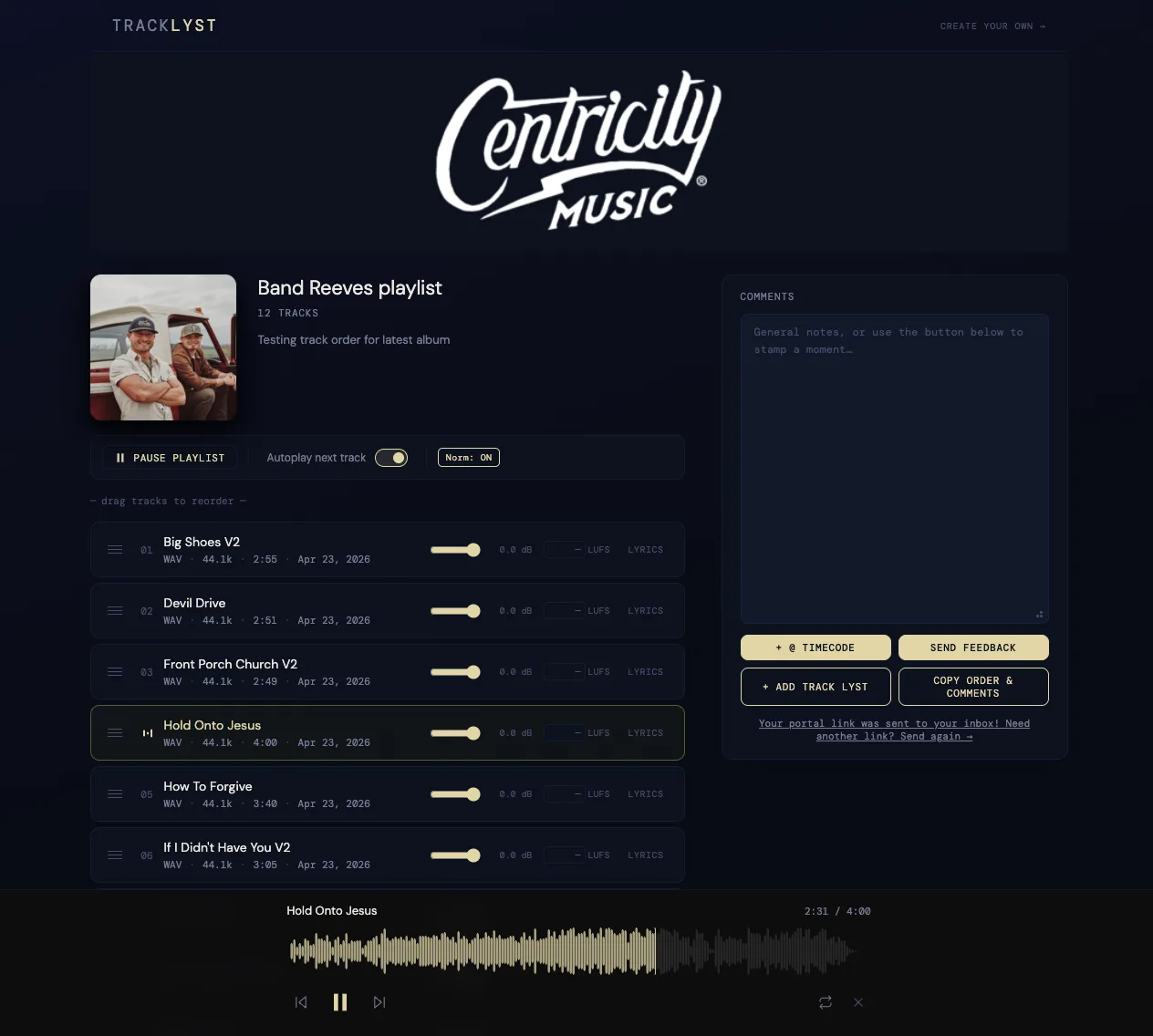
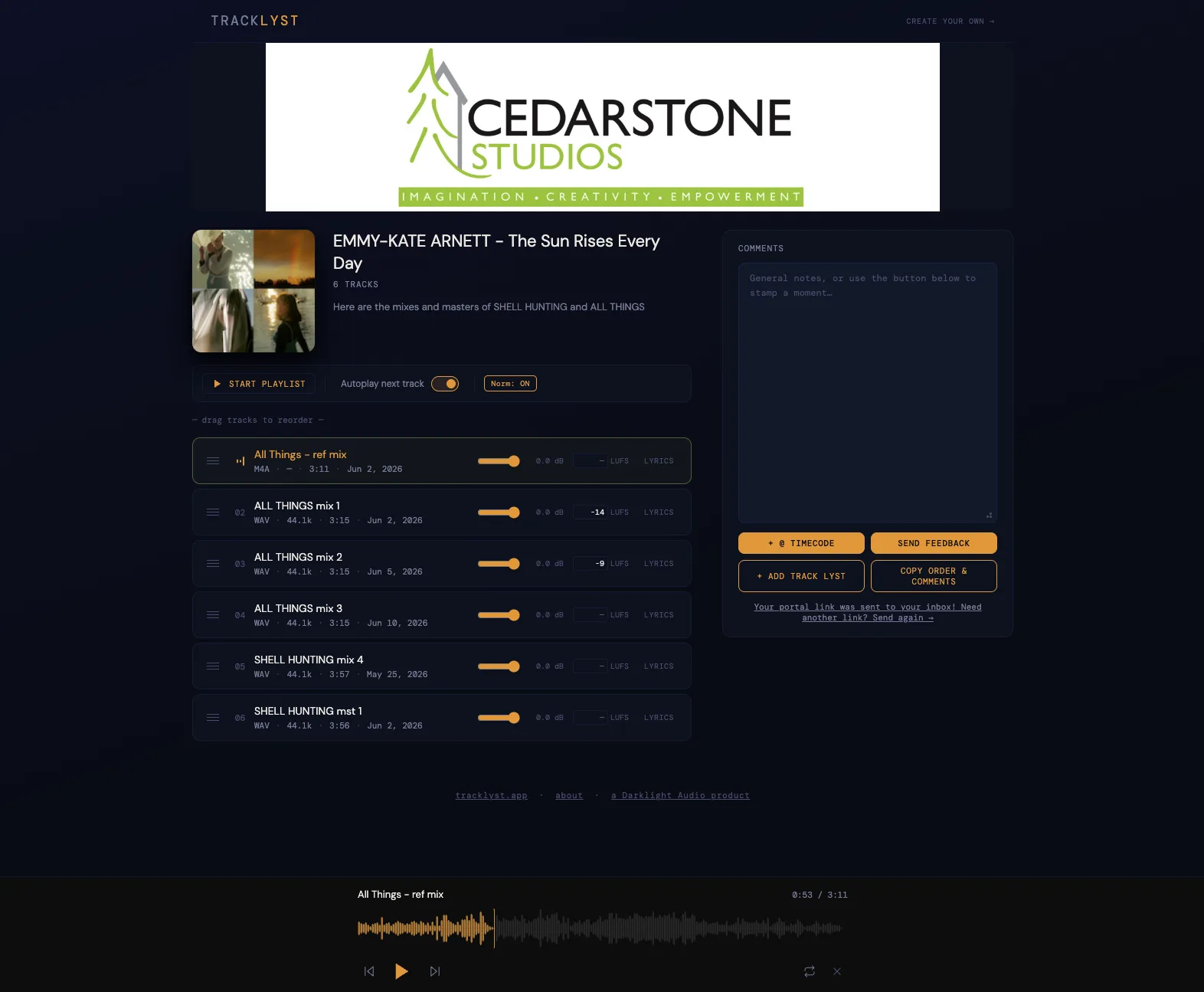
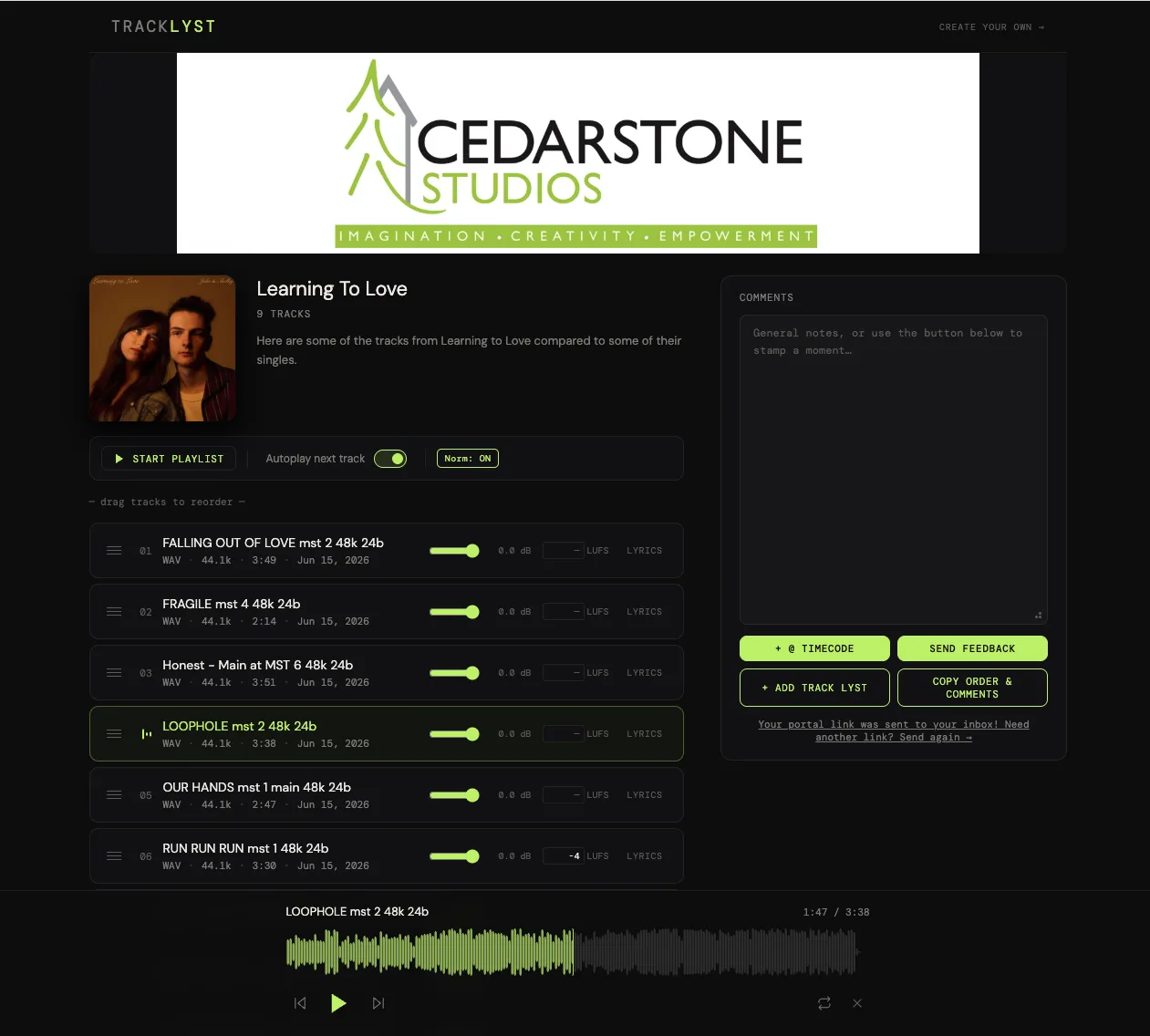
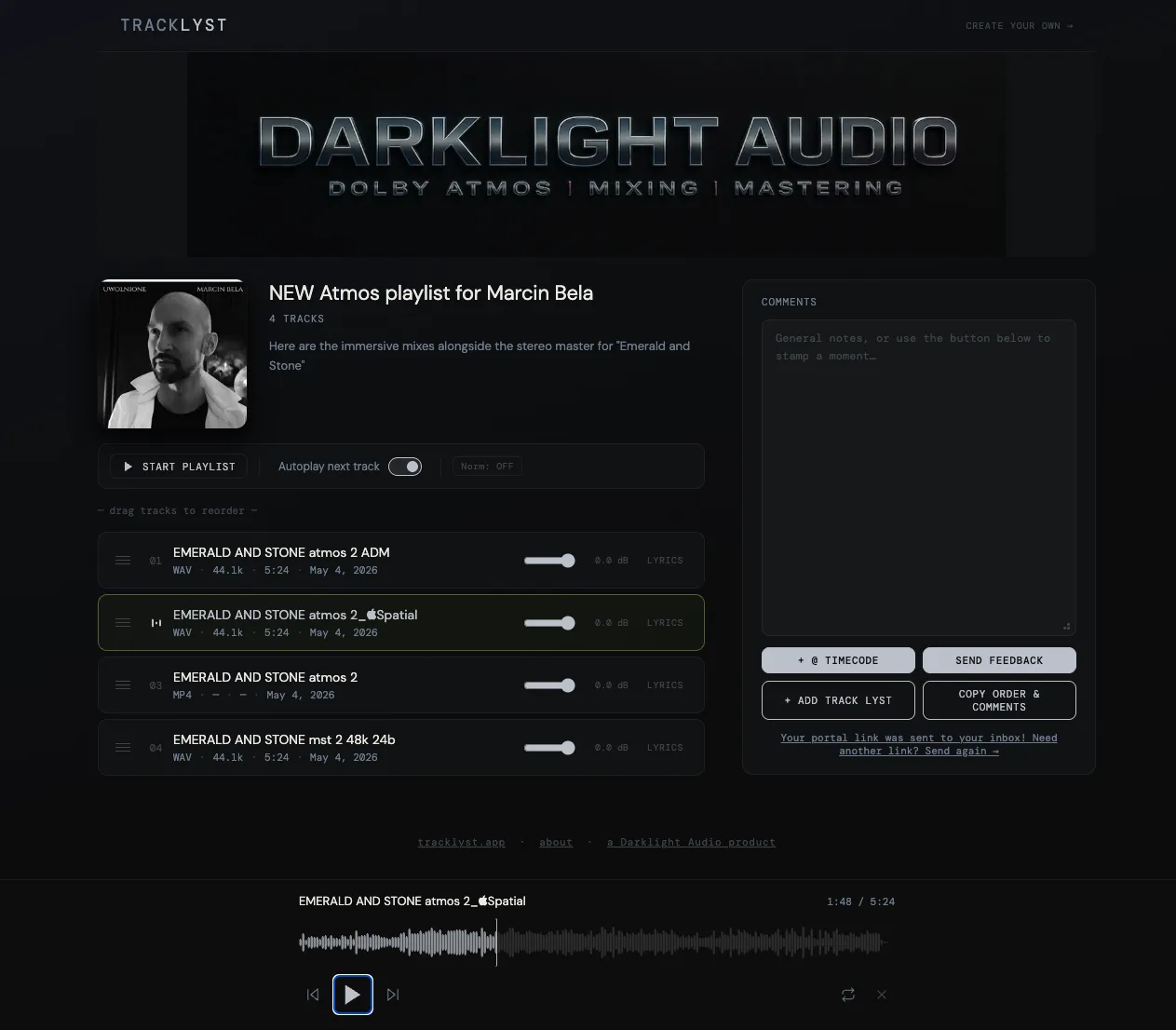
Sound familiar?
Sending audio shouldn't feel like this.
Song_FINAL_v2.wav
Song_FINAL_USE_THIS.wav
Song_FINAL_actually_USE_THIS_fr.wav
Shared Jun 18 · expired 7 days ago
📎 Song_v3_FINAL.wav · ···
8 attachments · which one did they approve?
something sounds off"
— no waveform reference —
Google Drive ✓ uploaded
WeTransfer ✓ sent
All 3 are now out of date.
There's a better way. One link. No mess.
Audio stays in your Dropbox or OneDrive. Tracklyst streams it directly — nothing is ever re-hosted or copied.
Clients open a link in any browser and they're in. No signup, no app, no friction between them and your music.
WAV, FLAC, AIFF — streamed at full quality. Clients hear exactly what you mixed, not a lossy proxy.
Give your clients a VIP experience.
Free plan available · No file uploads · No credit card required
Named projects
Client history that doesn't disappear.
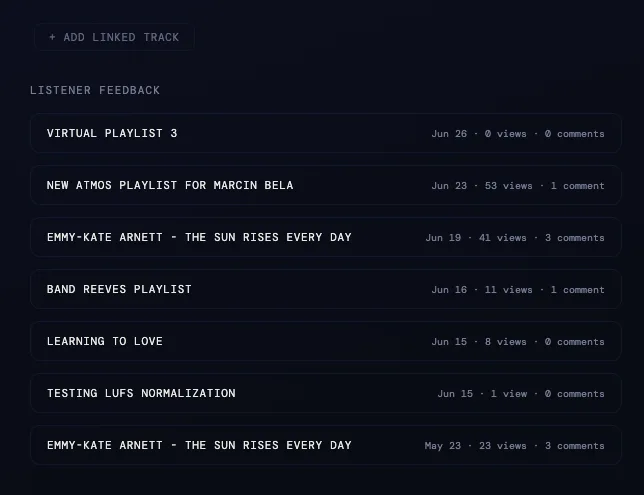
Every link you send lives inside a named project. Feedback, versions, and history stay organized — even when you send a new link next week.
- See views and comments per project at a glance
- Resend without losing the thread
- One project for every client, forever
How it works
Up and running
in 60 seconds.
Connect your cloud
Sign in with Dropbox or OneDrive. Your files stay exactly where they are — Tracklyst never stores, converts, or re-uploads your audio.
Build a playlist
Pick tracks from your folders, arrange the order, add a password or expiry if needed. Stack alternate mixes per track for easy version comparison.
Share & close
Send one link. Clients click — no account needed — leave precise timestamped notes on the waveform, and you see everything in one place.
Features
Everything you need.
Nothing you don't.
Built for mixing engineers, mastering engineers, labels, and producers who need professional-grade sharing without the overhead.
Your files, your cloud
Audio stays in your Dropbox or OneDrive — nothing is uploaded or re-hosted. Tracklyst streams directly from your own cloud storage.
Lossless playback
Stream FLAC, WAV, and AIFF directly from your cloud — no transcoding, no compression. Clients hear exactly what you mixed.
Full control
Set passwords, restrict downloads, add expiry dates. Lock track order or let listeners reorder. Your rules, every time.
Version stacking
Stack alternate mixes per track. Clients switch between versions without a new link — and always know which version they're hearing.
Waveform feedback
Listeners leave timestamped notes directly on the waveform. No more "around 2 minutes in" — every comment lands at the exact moment.
Listener Portal
Every listener gets a personal inbox — a magic link to all playlists shared with them. No account, no app, no friction.
See it in action
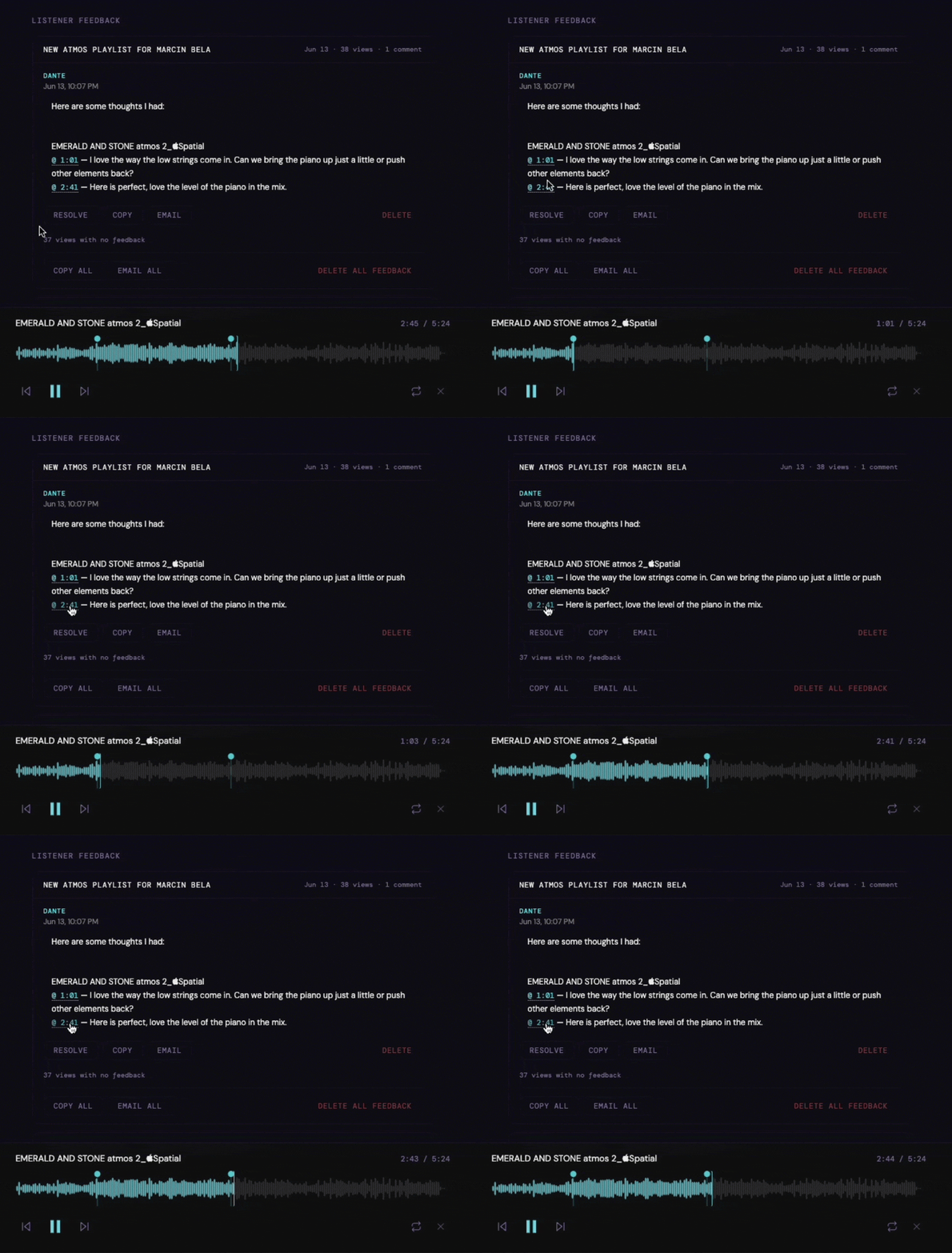
Feedback lands exactly where you left it.
AI lyric transcription
Lyrics auto-populate alongside playback — pulled from the audio automatically, no manual entry.
Loudness normalization
LUFS per track so clients hear every song at a consistent perceived volume — no loud-loud-quiet whiplash.
Branded share links Pro
Your own subdomain — yourname.tracklyst.app — on every link you send to clients.
Dolby Atmos & spatial audio Pro
Immersive mixes play natively in Safari and Edge — no plugins, no conversion required.
Stop wrestling with links and email chains.
Up and running in 60 seconds
The full loop
See both sides
of the feedback loop.
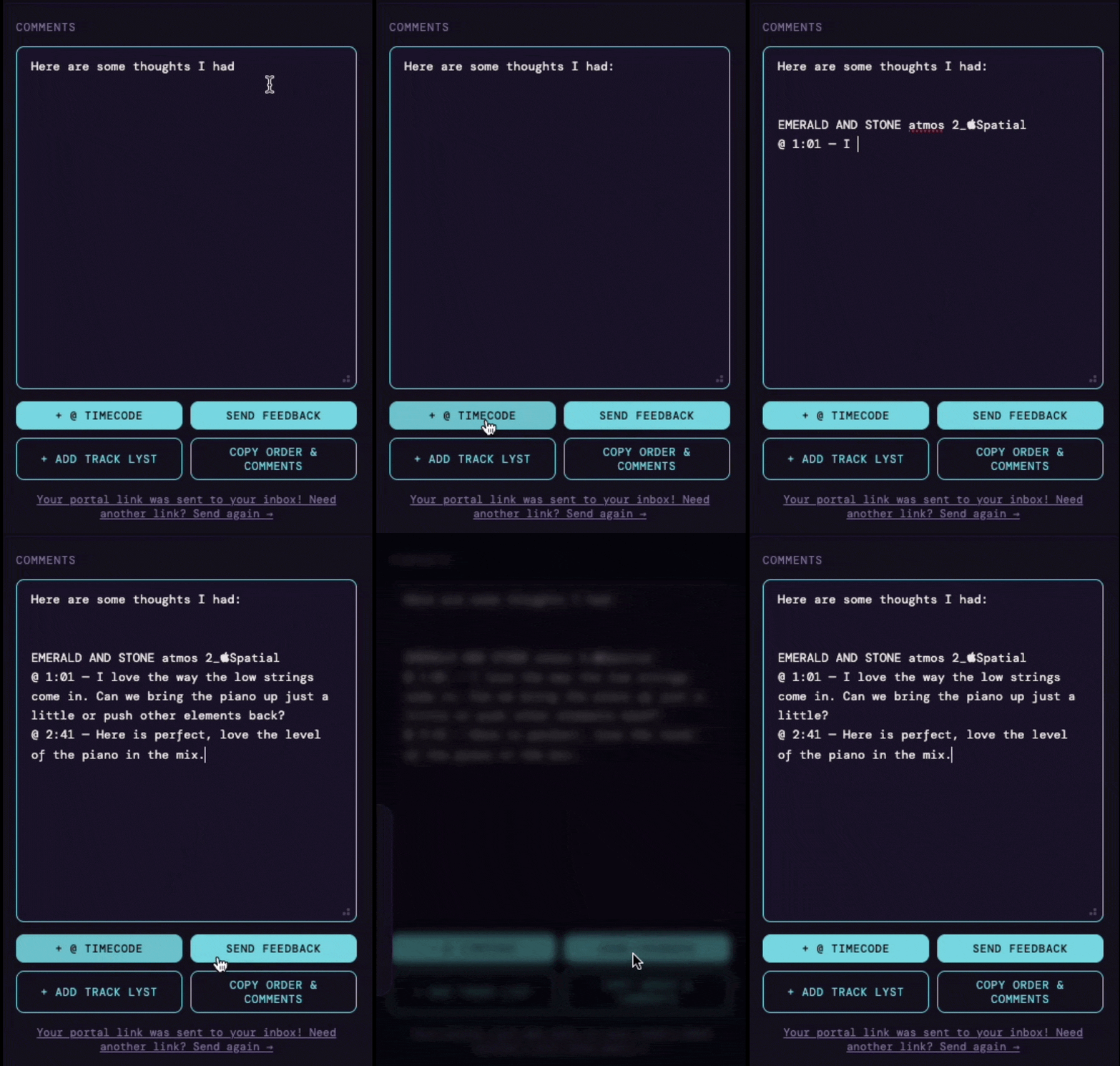
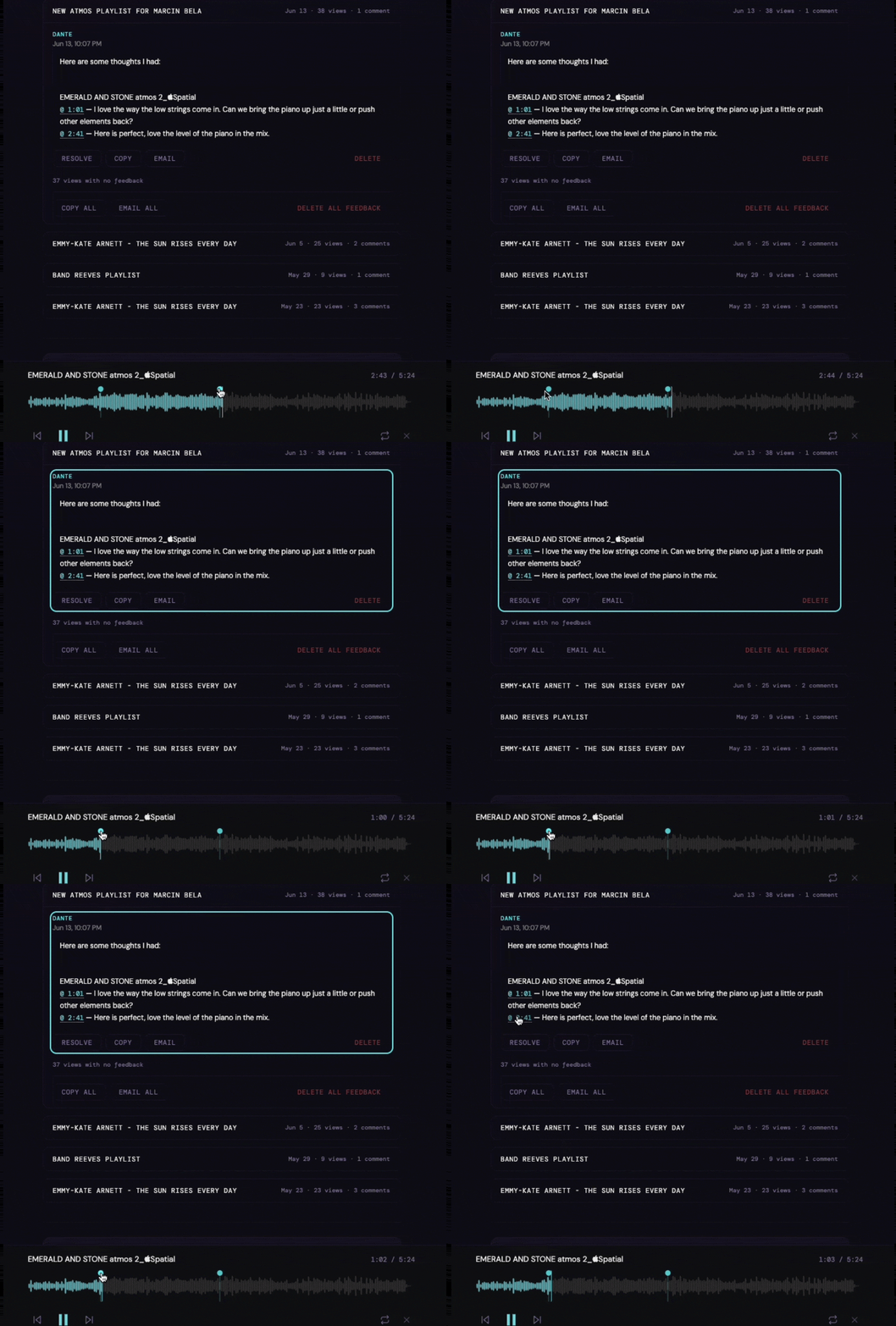
Listeners drop timestamped notes right in the browser — no account needed. You see every comment pinned to the waveform, and one click takes you straight to that moment.
Listener
Feedback as precise
as the music.
Creator
Find every note,
right where it happened.
Common questions
Straight answers.
How is Tracklyst different from Samply?
Samply re-hosts your audio — your files live on their servers. With Tracklyst, your audio stays in your own Dropbox or OneDrive and streams directly from there. You also get named projects so every link you send is organized by client, and if you charge for downloads, payments go straight to you via Stripe with no platform cut.
Do clients need to download anything?
No. They open a link in any browser and they're listening. No app, no account, no signup required. If you enable downloads, they can save the file — but listening requires nothing extra on their end.
What audio formats are supported?
WAV, FLAC, AIFF, MP3, and M4A. Lossless formats stream at full quality — no transcoding, no compression. Clients hear exactly what you mixed.
What happens if my Dropbox or OneDrive link expires?
Tracklyst refreshes streaming links automatically in the background so listeners never hit a dead link. Your files stay in your cloud; we just keep the connection open.
Can I charge clients to download tracks?
Yes. Connect your Stripe account, set a price per track or per playlist, and payments go directly to you. Tracklyst takes no platform cut.
Do you support Google Drive?
Not yet — Dropbox and OneDrive cover where most of our users already keep their sessions, so we built those integrations first. Google Drive requires its own OAuth integration and a separate Google security review before we can connect to your files, and we're actively working toward it. It's on our roadmap as we grow the list of supported storage providers.
Free Tools
Built for audio professionals
No upload, no account, no catch. Everything runs in your browser.
Stop sending audio the hard way.
Free plan available · No file uploads · No credit card required
Featured on





Your Created Playlists
Default Appearance
Sets the look of your dashboard and any new playlist. Playlists you've already saved keep their own look — this won't change them.
Holiday Themes
Tracklyst dresses up a little for the season. Your dashboard shows it automatically Oct 1–Nov 1, but you can turn it on or off any time of year with the switch. Sharing it with clients is a per-playlist choice — look for it in each playlist's Appearance settings.
Playlists shared with you
This playlist is password protected